Boost Your Streaming Speed and Privacy: How a Simple DNS Change Cleans Up Your Smart TV and Console
Introduction
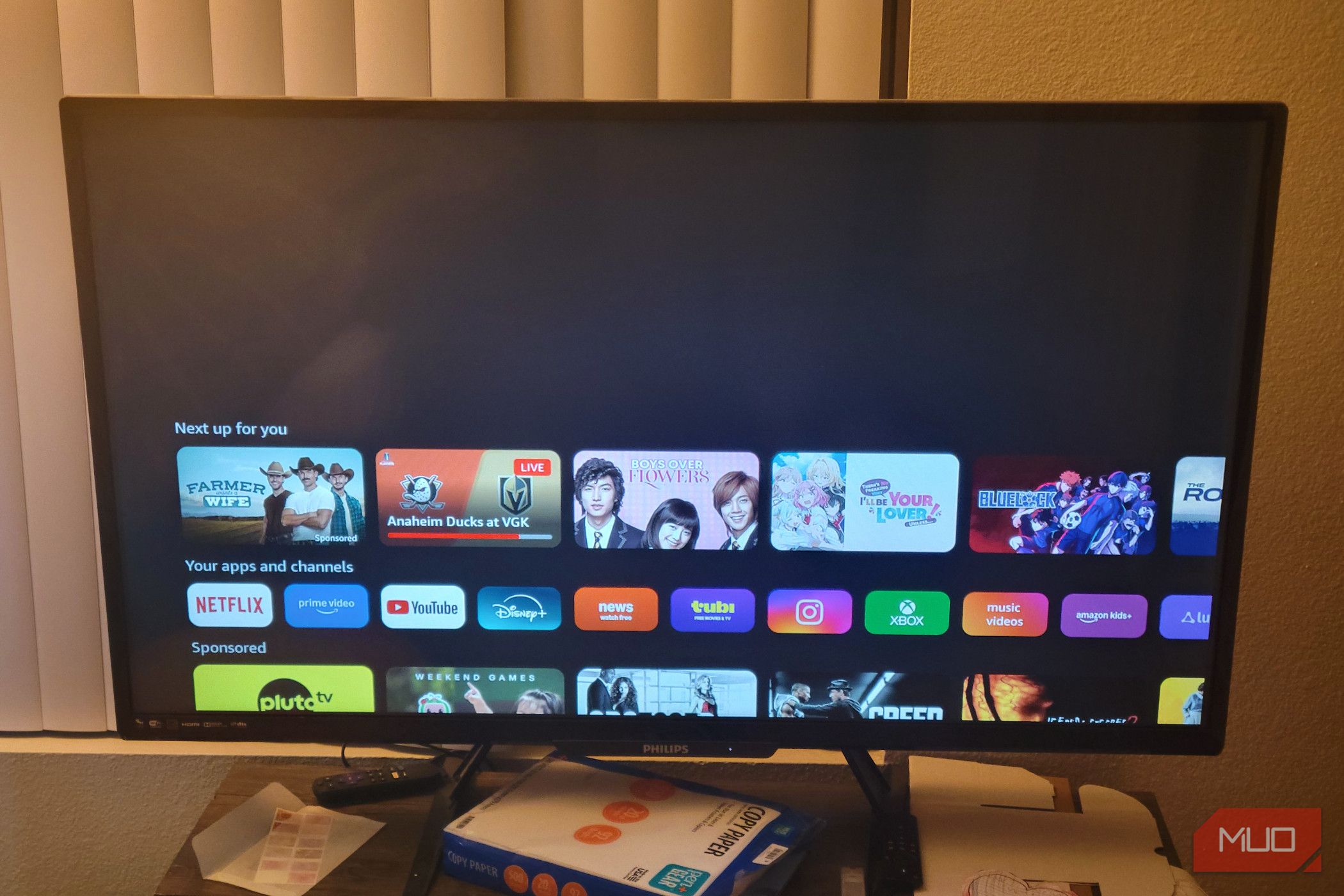
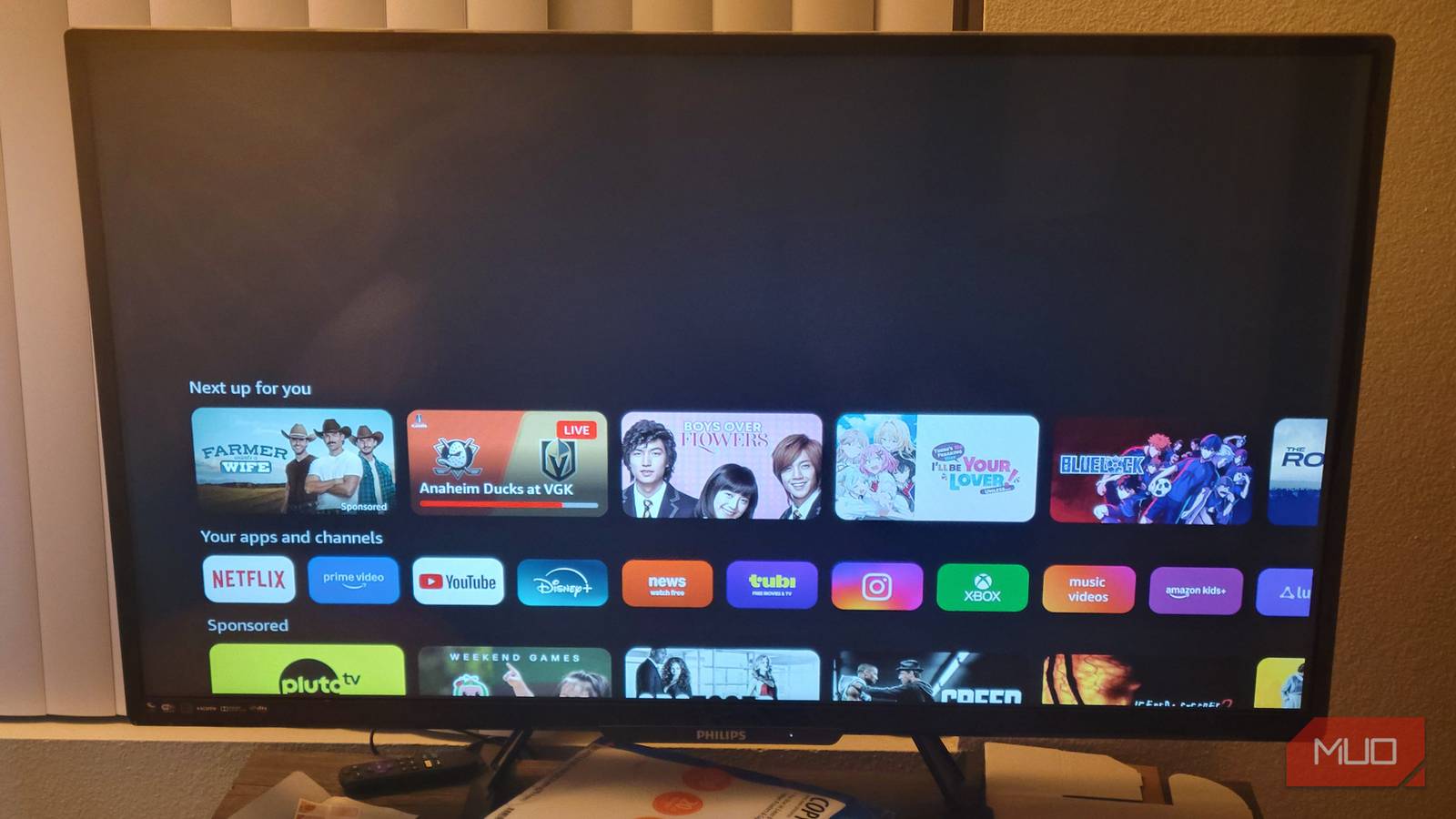
You invested significant money in your smart TV and game console, expecting a premium entertainment experience. Yet, sluggish menus, intrusive ads, and tracking that feels like your devices are watching you can quickly sour that experience. The good news? You don't need to install software or fiddle with complex settings. A simple DNS adjustment can block most of that junk while often improving performance. This article explains how changing your Domain Name System (DNS) settings works as a powerful, effortless way to reclaim your device and your privacy.
Understanding DNS and Why It Matters for Your Entertainment Devices
What Is DNS?
Think of DNS as the internet's phonebook. When you type a website address like example.com, your device consults a DNS server to find the numeric IP address needed to connect. Your internet service provider (ISP) usually assigns a default DNS server, but you can change it to any public DNS service. This shift is what makes ad blocking possible without extra software.
How DNS Can Block Ads and Trackers
Many ads and trackers come from domains that are known to serve unwanted content. Specialized DNS services maintain blocklists of these domains. When your smart TV or console tries to fetch content from a blocked domain, the DNS simply returns a dead end, effectively stopping the ad or tracker from loading. Because this filtering happens at the network level, every app and service on your device benefits automatically.
The Simple Switch: Changing DNS on Your Smart TV or Console
No downloads, no extra hardware. Every modern smart TV and game console allows you to change DNS in the network settings. Below are general guidelines; the exact menu names may vary slightly by brand or model.
For Smart TVs
- Open Settings — navigate to Network or General settings.
- Select your connection — choose Wi-Fi or Ethernet, then select “Manual” or “Custom” IP settings.
- Enter DNS addresses — you’ll typically find fields for primary and secondary DNS. Input the custom DNS addresses from a trusted ad-blocking provider.
- Save and restart — confirm the changes and reboot the TV if prompted.
For Game Consoles
PlayStation (PS4/PS5): Go to Settings > Network > Set Up Internet Connection. Choose your connection type, select Custom, and then set DNS to Manual. Enter the custom DNS addresses and continue.
Xbox Series X|S and One: Navigate to Settings > General > Network Settings > Advanced Settings > DNS Settings. Choose Manual and input your preferred DNS servers.
Nintendo Switch: Head to System Settings > Internet > Internet Settings. Select your network, choose Change Settings, then scroll down to DNS Settings and set it to Manual. Enter the addresses.
Choosing the Right DNS Service
Not all DNS services block ads. You need one that specifically includes filter lists for advertising and tracking domains. Here are three widely recommended options:
- AdGuard DNS — Blocks ads across the board. Standard addresses: 94.140.14.14 (primary), 94.140.15.15 (secondary). Family protection version also blocks adult content.
- Cloudflare for Families — Malware blocking, plus an optional block for adult content using 1.1.1.3 (primary) and 1.0.0.3 (secondary).
- Quad9 — Focuses on security, blocking known malicious domains but not all ads. Use 9.9.9.9 (primary), 149.112.112.112 (secondary).
The Benefits: Speed, Privacy, and a Better Experience
After switching to an ad-blocking DNS, many users notice that menus load faster because your device no longer waits for ads to fail. Streaming apps may start quicker, and you’ll see fewer blank boxes where ads used to be. More importantly, your viewing and gaming habits aren’t broadcast to ad networks. This small change moves you from being the product to being the customer again.
Common Questions and Troubleshooting
Will this break my streaming apps? Rarely. Major platforms like Netflix, YouTube, and Hulu don’t rely on third-party ad domains that get blocked. If something does break, switch back to your ISP’s DNS temporarily.
Do I need to change DNS on each device? Yes, unless you set up custom DNS on your router, which then applies to every device on your home network. The router method is more thorough but requires a bit more effort.
Can I revert the change easily? Absolutely. Just go back to Network Settings and switch DNS from Manual back to Automatic.
Conclusion
Your smart TV and game console are powerful machines, but out of the box they’re often cluttered with ad-serving junk that slows performance and invades your privacy. Changing the DNS settings takes less than two minutes and requires no technical background. You’ll enjoy faster navigation, reduced tracking, and a cleaner interface. Try one of the recommended DNS services today — the only cost is a few taps in your settings menu.